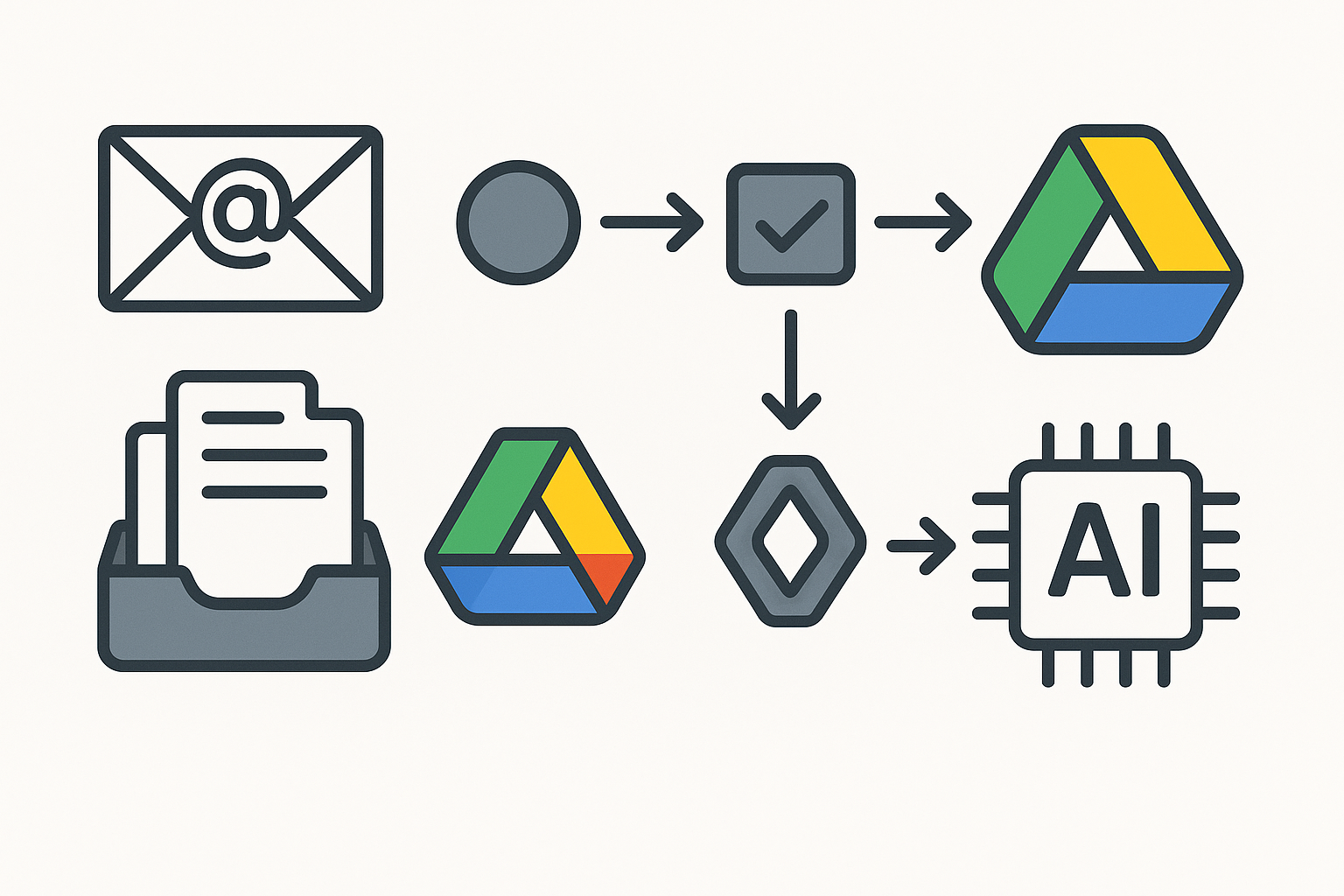
A misplaced document can lead to wasted hours searching through countless folders, and the frustration of not finding what you need can quickly mount. If you’ve ever spent a significant amount of time sifting through files, you know how crucial it is to have an efficient system in place. The good news is that automating your document management with Google Drive can simplify this process, allowing you to focus on more important tasks while ensuring your files are well-organised.
Google Drive is not just a cloud storage solution; it offers a robust platform for automating file organisation. By leveraging its features, you can set up a system that categorises your documents automatically, reducing the time spent on manual sorting. This is particularly useful if you manage multiple projects or have a large volume of files to handle. For example, if you’re juggling client contracts, invoices, and project proposals, having a streamlined approach can prevent the chaos of misplaced documents and missed deadlines.
Understanding Google Drive’s Capabilities
Before diving into the automation process, it’s essential to understand what Google Drive can do. The platform allows you to create folders, share files, and collaborate with others in real-time. But beyond these basic functions, Google Drive also supports various integrations and automation tools that can enhance your document management. If you’d like more practical workflows, check out our other guides.
One of the standout features of Google Drive is its ability to integrate with other applications. For instance, you can connect it with Google Sheets or Google Forms to automatically save responses or data entries as files in your Drive. This integration means that every time someone submits a form, a new document can be created and stored in a designated folder without any manual effort on your part. If you don’t use Google Drive, the same idea works with other cloud storage solutions like Dropbox or OneDrive, which also support automation through various tools.
Setting Up Automated File Organisation
To begin automating your file organisation, start by defining the structure you want in your Google Drive. This means deciding how you want to categorise your documents. You might want folders for different clients, projects, or types of documents, such as contracts, invoices, or reports. Once you have a clear structure in mind, you can set up automation to ensure that files are sorted correctly as they are created or uploaded.
One effective way to automate file organisation is by using Google Drive’s built-in features alongside Google Apps Script, a powerful tool that allows you to write custom scripts for automating tasks. For example, you can create a script that automatically moves files into specific folders based on their names or types. If you regularly receive invoices that include the client’s name in the file title, you can set a script to detect that name and move the file to the corresponding client folder. This not only saves time but also reduces the chances of misplacing important documents.
Setting up such a script requires some basic familiarity with coding, but there are numerous resources available online to guide you through the process. Once you’ve created your script, you can run it periodically or set it to trigger automatically whenever new files are added to your Drive.
Automating Document Creation
Another aspect of document management that can benefit from automation is the creation of new files. If you often need to generate similar documents, such as contracts or reports, you can use Google Docs templates to streamline this process. By creating a template for each type of document, you can quickly generate new files without starting from scratch each time.
For instance, if you’re a freelancer who needs to send out contracts regularly, you can create a contract template in Google Docs. Then, using Google Drive’s automation capabilities, you can set up a process where a new contract is automatically generated whenever you receive a new client inquiry through a form. This way, you not only save time but also ensure consistency in your documentation.
If you’re not comfortable with Google Apps Script, there are other tools available that can assist with document creation and management. Many users find platforms like Zapier or Make to be helpful for connecting different apps and automating workflows. For example, you could use Zapier to create a new Google Doc from a Google Form submission, ensuring that all client inquiries are documented without any manual entry.
Keeping Your Files Up to Date
Automating file organisation also extends to keeping your documents up to date. If you frequently update files or replace older versions with new ones, it’s essential to have a system that manages these changes effectively. Google Drive allows you to maintain version history, which means you can track changes made to a document over time. However, you might want to implement a more proactive approach to ensure that your folders remain current.
One way to do this is by setting up a scheduled reminder to review your files periodically. You can use Google Calendar to create a recurring event that prompts you to check for outdated documents or to reorganise your folders as needed. This simple reminder can prevent the accumulation of unnecessary files, making it easier to find what you need when you need it.
Additionally, you can automate notifications for specific folders. For example, if you have a folder dedicated to client projects, you can set up notifications to alert you whenever a new file is added. This way, you stay informed about changes in your document management system without having to constantly check your Drive.
Collaborating with Others
If you work with a team, automating document management becomes even more critical. Google Drive’s collaboration features allow multiple users to access and edit documents simultaneously, but this can lead to confusion if files are not organised properly. By automating your file organisation, you can create a more efficient workflow for your team, ensuring everyone knows where to find the latest versions of documents.
Consider setting up shared folders for different projects, where all team members can access relevant files. You can automate the sharing process by using Google Groups or managing permissions directly within Google Drive. This way, you can control who has access to specific folders and ensure that sensitive documents are only visible to the appropriate team members.
Moreover, you can implement a naming convention for files that everyone on your team follows. By establishing a standard format for file names, such as including the project name and date, you can make it easier for everyone to locate documents. Automating the creation of new files with this naming convention can further streamline the process, as everyone will be on the same page regarding how files are labelled and stored.
Monitoring and Maintaining Your System
Once you’ve set up your automated document management system, it’s essential to monitor its effectiveness regularly. Take time to assess whether your current structure is working for you and if there are any areas for improvement. This might involve checking the accuracy of your automated scripts, ensuring that files are being sorted correctly, and evaluating whether your naming conventions are being followed.
If you find that certain files are still getting misplaced or that your folders are becoming cluttered, it may be time to revisit your automation setup. You can adjust your scripts or create new ones to address any issues you encounter. Regular maintenance of your system will help you avoid the pitfalls of disorganisation and keep your document management running smoothly.
Additionally, consider gathering feedback from your team if you’re collaborating with others. Their insights can provide valuable information on how the system is functioning and whether any adjustments are needed to enhance efficiency.
Conclusion
Automating your document management with Google Drive can significantly reduce the time spent on file organisation and improve your overall productivity. By setting up a structured system, leveraging automation tools, and maintaining your files effectively, you can create a streamlined workflow that works for you. Whether you’re a freelancer managing client contracts or a team leader overseeing multiple projects, implementing these strategies can help you stay on top of your document management tasks.
If you’re looking for additional tips on automation, consider exploring other areas where you can streamline your processes. For instance, Streamlining Your Online Research: Automating Web Tasks with Zapier can provide valuable insights into optimising your workflows further.