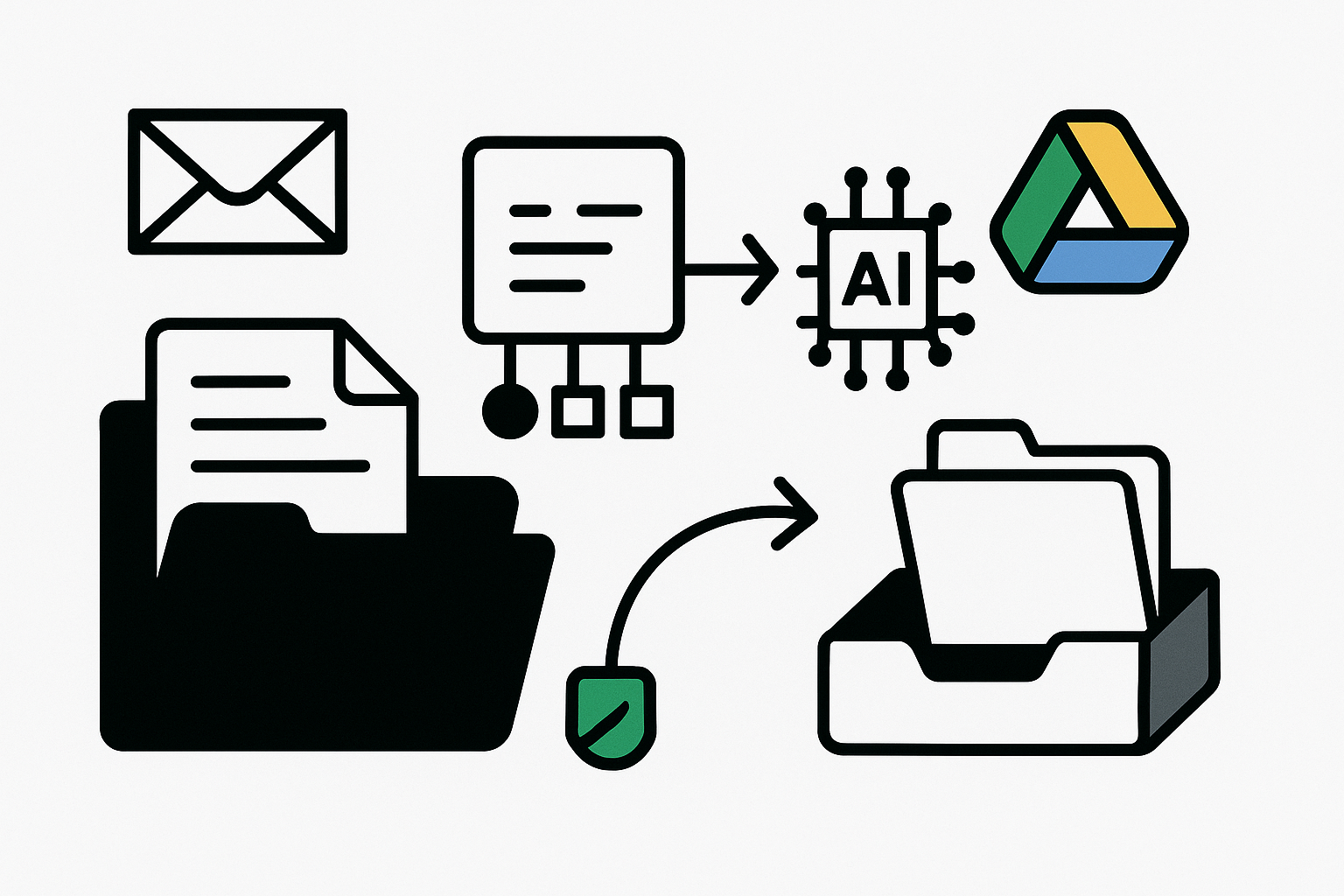
A misplaced document can lead to hours of searching, missed deadlines, and unnecessary stress. If you’ve ever found yourself sifting through a chaotic folder structure or struggling to locate an important file, you know how crucial effective document management is. The good news is that with Google Drive, you can streamline your file organisation and automate many aspects of your document management, allowing you to focus on what truly matters.
When it comes to document management, Google Drive offers a user-friendly platform that allows you to store, share, and collaborate on files seamlessly. If you’re juggling multiple projects or managing client documents, having a solid system in place can make all the difference. By leveraging Google Drive’s capabilities, you can create a structured environment that enhances productivity and reduces the time spent on administrative tasks.
Establishing a Clear Folder Structure
The foundation of effective document management lies in a well-organised folder structure. Start by identifying the main categories that reflect your work or personal life. For instance, if you’re a freelancer, you might create folders for different clients, projects, or services you offer. Within each main folder, consider adding subfolders to further categorise your documents. This hierarchical approach not only simplifies navigation but also ensures that files are easy to locate when needed.
For example, if you have a folder dedicated to a specific client, you could create subfolders for contracts, invoices, and correspondence. This way, whenever you need to access a document related to that client, you can quickly find it without unnecessary digging. Establishing a clear folder structure prevents the frustration of searching through a cluttered drive and allows you to maintain focus on your tasks.
Naming Conventions Matter
Once your folder structure is in place, the next step is to implement a consistent naming convention for your files. This practice can significantly enhance your document management system. Choose a format that includes relevant details such as the date, project name, and document type. For instance, instead of naming a file “Report”, consider naming it “2023-10-01_ClientName_Report”. This approach not only makes it easier to identify files at a glance but also helps maintain order as your document library grows.
Using dates in your file names is particularly useful for tracking revisions or updates. If you need to refer back to a previous version of a document, having a clear naming convention allows you to do so without confusion. This small adjustment can save you time and prevent the hassle of opening multiple files to find the right one. If you’re exploring more ways to automate life admin, check out our other guides.
Automating File Uploads and Sharing
Google Drive offers various automation features that can further streamline your document management. For instance, if you frequently receive files from clients or collaborators via email, you can set up a system to automatically save those attachments directly to your Drive. By using Google Workspace tools like Google Forms or integrating with services like Zapier, you can create workflows that automatically upload files to specific folders based on predefined criteria.
Imagine receiving client documents through email. Instead of manually downloading and uploading each file to the appropriate folder, you can automate this process. By setting up a Google Form that clients fill out to submit their documents, you can have those files automatically organised in your Drive. This not only saves time but also minimises the risk of losing important documents amidst a flurry of emails.
Collaborating with Ease
One of the standout features of Google Drive is its collaboration capabilities. When working with others, whether on a team project or sharing files with clients, Google Drive allows you to easily share documents and folders. You can control access levels, enabling others to view, comment, or edit files as needed. This functionality enhances teamwork and ensures everyone is on the same page, reducing the chances of miscommunication or version control issues.
To facilitate collaboration, consider creating shared folders for specific projects. By inviting team members or clients to these folders, you can ensure that everyone has access to the most up-to-date documents. This approach eliminates the need for constant email exchanges and helps keep all relevant files in one place, making it easier to track progress and share feedback.
Utilising Google Drive’s Search Functionality
Even with a well-organised folder structure and consistent naming conventions, it’s still possible to misplace a file. Fortunately, Google Drive’s powerful search functionality can help you locate documents quickly. By using keywords, file types, or even searching by owner, you can find what you need without scrolling through endless folders.
If you have a large number of files, consider using advanced search options to narrow down your results. For instance, if you remember the file was a PDF related to a specific project, you can filter your search accordingly. This feature can save you valuable minutes that would otherwise be spent searching manually through your Drive.
Keeping Your Drive Clean and Updated
Maintaining an organised document management system requires regular upkeep. Set aside time each month to review your folders and files. Delete any outdated or irrelevant documents to keep your Drive clutter-free. This practice not only makes it easier to find what you need but also ensures that you’re not storing unnecessary files that could lead to confusion down the line.
If you’re managing multiple clients or projects, consider archiving completed work instead of deleting it. Google Drive allows you to create an archive folder where you can store finished projects. This way, you can easily refer back to past work without it cluttering your active folders. Regular maintenance of your Drive will help you stay organised and efficient in your document management practices.
Integrating with Other Tools
While Google Drive is a powerful tool on its own, integrating it with other applications can further enhance your document management capabilities. For instance, if you use project management tools like Trello or Asana, you can link your Google Drive files directly to tasks or projects. This integration allows you to access relevant documents without switching between platforms, making your workflow more seamless.
If you don’t use Google Drive, the same idea works with other platforms like Dropbox or OneDrive, which also offer integration options with various applications. By leveraging these integrations, you can create a more cohesive workflow that minimises the time spent on administrative tasks.
Exploring Automation Options
To take your document management to the next level, consider exploring automation options available within Google Drive. For example, you can set up automated reminders for document reviews or deadlines using Google Calendar. By linking your Drive with your calendar, you can ensure that you never miss an important date related to your files.
Another useful automation feature is the ability to create templates for frequently used documents. If you often create similar reports or proposals, having a template saved in your Drive can save you time and ensure consistency in your documents. This approach reduces the risk of errors and allows you to focus on the content rather than formatting.
Conclusion
Effective document management is essential for maintaining productivity and reducing the stress associated with disorganisation. By implementing a clear folder structure, using consistent naming conventions, and leveraging Google Drive’s automation features, you can create a streamlined system that works for you. Regularly reviewing and maintaining your Drive will ensure that it remains an efficient tool for your personal or professional needs.
If you’re looking to enhance your digital organisation further, consider exploring how Google Drive can transform your personal knowledge management. By leveraging its features for digital notes, you can create a comprehensive system that supports your workflow and keeps your information easily accessible. For more insights, check out Transforming Your Personal Knowledge Management: Leveraging Google Drive for Digital Notes.