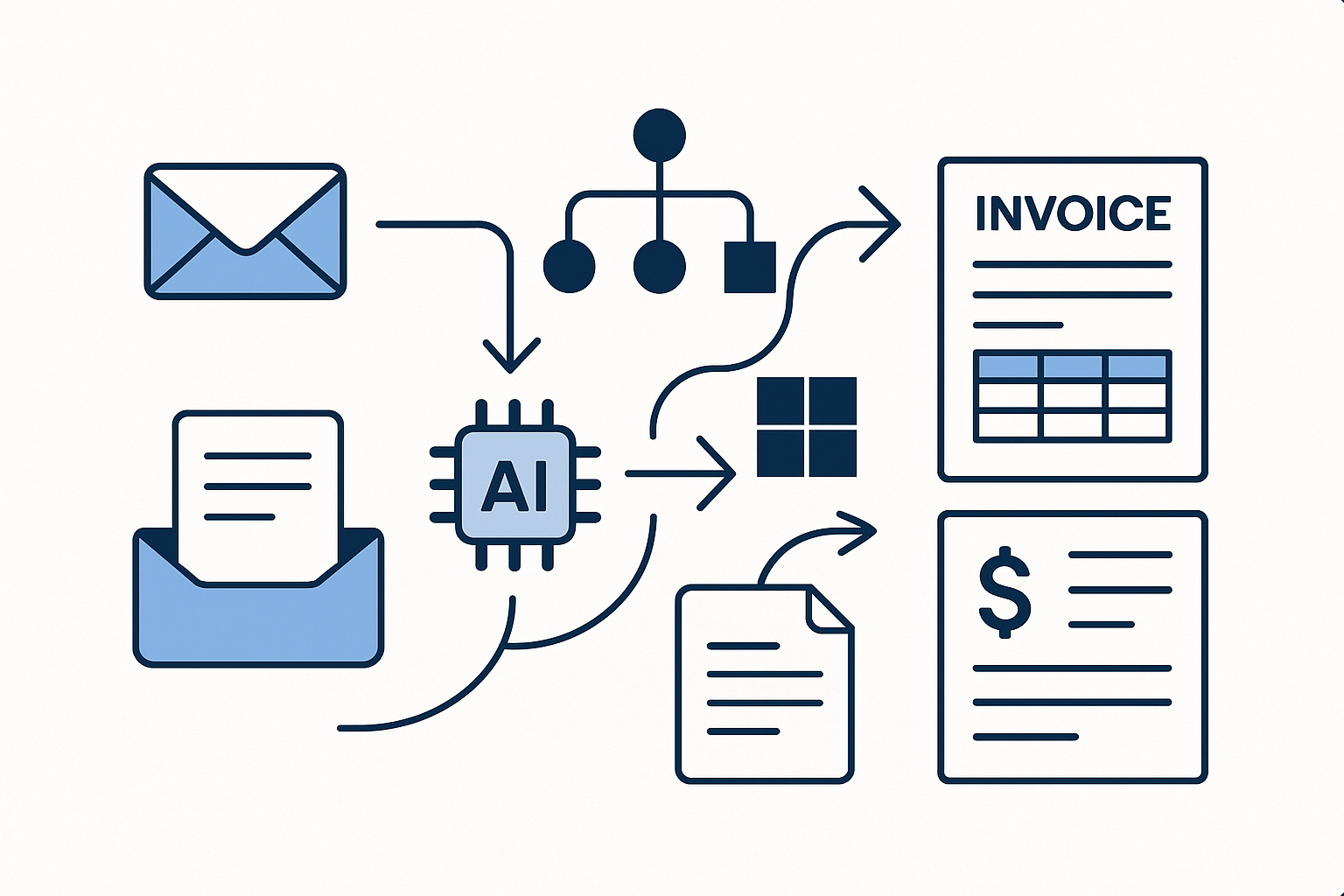
A missed follow-up can lead to lost income and frustrated clients, which is a situation many small business owners face. When you’re juggling client calls, project deadlines, and administrative tasks, it’s easy to overlook sending an invoice or a quote. This oversight not only delays payments but can also create a perception of unprofessionalism. Fortunately, client follow-up automation can transform how you manage these essential tasks, ensuring you stay on top of your invoicing and quotes without adding to your workload.
Microsoft 365 offers a suite of tools that can help streamline your client follow-up processes, making it easier to send invoices and quotes promptly. By leveraging applications like Excel, Outlook, and Power Automate, you can create a seamless workflow that reduces manual effort and minimises the risk of errors. Setting up this automation may seem daunting, but it’s quite straightforward and can significantly improve your efficiency.
Setting Up Your Invoicing and Quotes System
To begin automating your client follow-up, start by organising your invoicing and quotes within Excel. You can create a template that includes all necessary fields such as client name, service provided, amount due, and due date. This template will serve as the foundation for your invoicing process. Once you have your template ready, you can use it to generate invoices or quotes quickly, ensuring that all essential information is captured accurately.
After setting up your Excel template, the next step is to integrate it with Outlook. This integration allows you to send invoices and quotes directly from your email, which is crucial for maintaining a professional image. You can create a standard email template that accompanies your invoices, making it easy to personalise each message while keeping your branding consistent. This way, when you send an invoice or quote, your clients receive a polished and professional communication.
Automating the Follow-Up Process
Once your invoicing system is in place, the real magic happens when you set up automation through Power Automate. This tool enables you to create workflows that automatically trigger actions based on specific events. For instance, you can set up a workflow that sends a reminder email to clients two days before their invoice is due. This gentle nudge can help ensure timely payments while also reinforcing your commitment to excellent service.
To create this workflow, you will need to connect Excel and Outlook within Power Automate. Start by selecting a trigger, such as a new row added to your Excel sheet, which indicates that an invoice has been created. From there, you can specify the action to send an email reminder to the client. Make sure to include all relevant details in the email, such as the invoice amount and due date, so your clients have all the information they need at their fingertips. If you’d like more practical workflows, check out our other guides.
This automation not only saves you time but also reduces the likelihood of late payments. By proactively reminding clients about their invoices, you can maintain a steady cash flow and avoid the awkwardness of chasing payments. Additionally, if you’re managing multiple clients, this system helps ensure that no one falls through the cracks, as each client receives their reminders on time.
Enhancing Client Communication
Effective communication is key to successful client relationships, and automating your follow-up process can enhance this communication significantly. With Microsoft 365, you can set up automated responses for common inquiries related to invoicing and quotes. For example, if a client asks for a quote, you can create a workflow that automatically sends them a standard response with a link to your quote template or a summary of your services.
This approach not only saves you time but also provides clients with immediate answers, which can improve their overall experience. If you’re a sole trader or running a small business, this level of responsiveness can set you apart from competitors who may not have the same systems in place. Clients appreciate quick responses, and by automating these communications, you can ensure they receive the information they need without delay.
Tracking and Analysing Your Workflow
To optimise your client follow-up automation, it’s essential to track and analyse the effectiveness of your workflows. Microsoft 365 provides tools that allow you to monitor the performance of your invoicing and quoting processes. By reviewing data such as the average time taken to send an invoice or the percentage of invoices paid on time, you can identify areas for improvement.
For instance, if you notice that a significant number of invoices are paid late, it may be worth revisiting your reminder system. Perhaps the timing of your reminders needs to be adjusted, or maybe you need to enhance your communication strategy. By continuously analysing your workflow, you can make informed decisions that lead to better outcomes for your business.
Additionally, consider asking for feedback from your clients about their experience with your invoicing and quoting process. This feedback can provide valuable insights into what’s working well and what might need adjustments. Engaging with your clients in this way not only helps improve your processes but also strengthens your relationships with them.
Conclusion
Implementing client follow-up automation using Microsoft 365 can significantly enhance your invoicing and quoting processes. By setting up a structured system within Excel, integrating it with Outlook, and leveraging Power Automate for reminders and communications, you can streamline your small business admin tasks effectively. This approach not only saves you time but also ensures that your clients receive timely and professional communications, ultimately leading to improved cash flow and stronger client relationships.
If you’re ready to take your automation efforts further, consider exploring other areas of your life that could benefit from similar strategies. For example, you might find value in automating personal alerts and notifications to keep your daily tasks organised. Streamlining Your Life: Automating Phone Notifications and Personal Alerts with Google Calendar can provide you with insights on how to enhance your personal productivity as well. Embracing automation in both your professional and personal life can lead to a more organised and efficient routine.