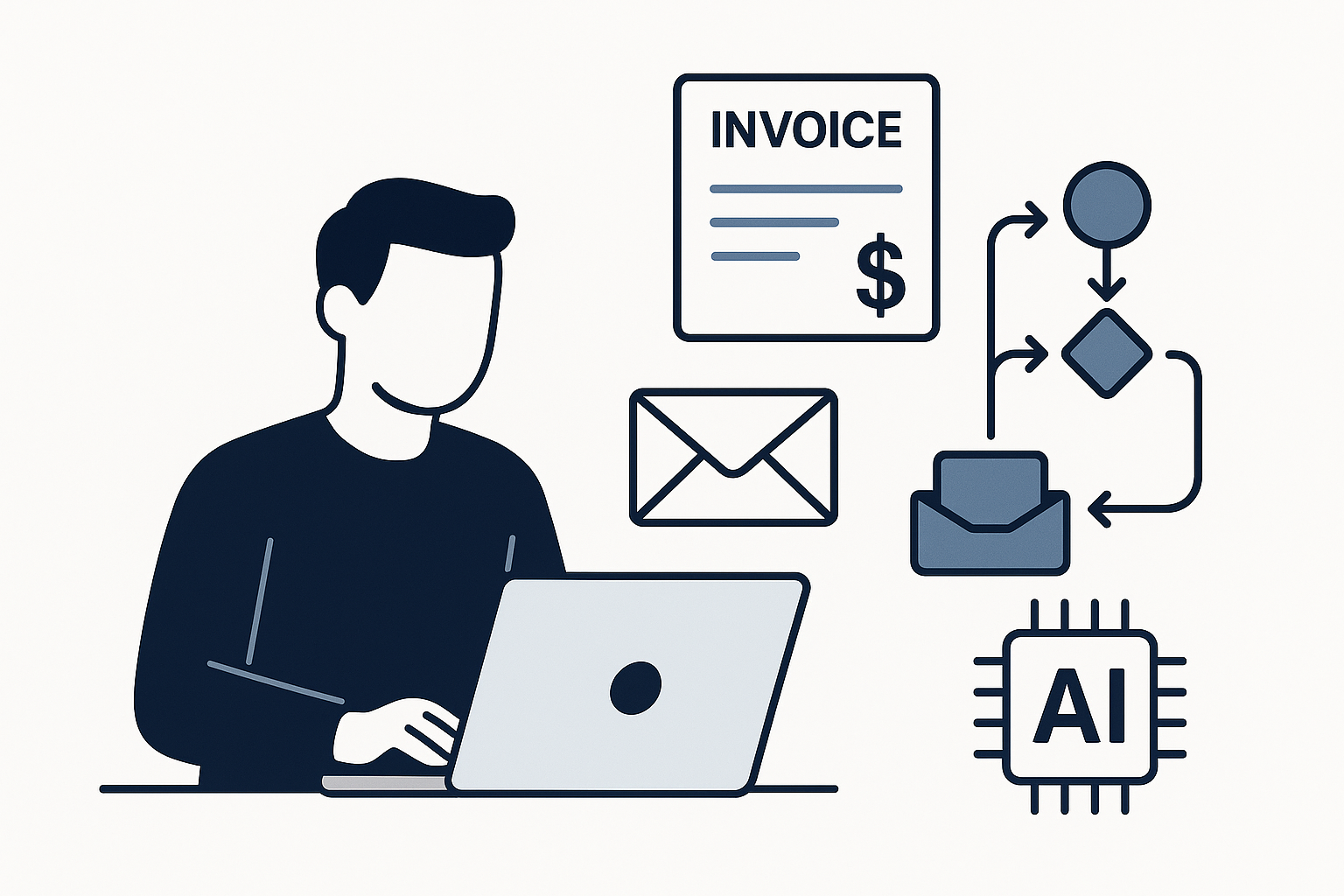
A missed follow-up can lead to lost opportunities, and forgetting to send an invoice can delay payments, causing unnecessary stress. For many professionals, managing client interactions and ensuring timely invoicing can quickly become overwhelming. If you’re self-employed and juggling multiple clients, you know how easy it is to let these essential tasks slip through the cracks. Fortunately, automating these processes can significantly reduce your administrative burden, allowing you to focus on what you do best.
Client management is a crucial aspect of running a successful business, and with Microsoft 365, you can streamline invoicing and follow-ups with ease. By integrating tools like Outlook and Excel, you can create a seamless workflow that ensures your clients receive timely communications and invoices without the constant need for manual input. This not only saves you time but also helps maintain a professional image, as your clients will appreciate the promptness of your responses and the clarity of your invoicing.
Setting Up Your Client Management System
To begin automating your client management tasks, start by organising your client information in Excel. Create a spreadsheet that includes essential details such as client names, email addresses, project details, and invoice statuses. This centralised database will serve as the foundation for your automation efforts. You can easily update it as you gain new clients or complete projects, ensuring that your information is always current.
Once your client database is set up, you can use Microsoft Power Automate to create workflows that automate follow-ups and invoicing. Power Automate allows you to connect various Microsoft 365 applications, enabling you to trigger actions based on specific events. For instance, you can set up a workflow that automatically sends a follow-up email to a client three days after you’ve sent an invoice, ensuring that no payment reminders are overlooked. This proactive approach helps you maintain healthy cash flow and keeps your clients informed.
Automating Invoicing with Microsoft 365
When it comes to invoicing, Microsoft 365 provides several tools that can simplify the process. By using Excel to create your invoices, you can take advantage of templates that automatically calculate totals and taxes based on the services provided. Once your invoice template is ready, you can save it and use it repeatedly, only needing to fill in the specific details for each client.
To automate the sending of invoices, integrate Excel with Outlook through Power Automate. After creating an invoice in Excel, you can set up a workflow that triggers an email to the client as soon as the invoice is marked as ‘sent’ in your spreadsheet. This ensures that your clients receive their invoices promptly, reducing the chances of delays in payment. You can also include a friendly message in the email body, reinforcing your professionalism and encouraging timely payment.
Follow-Ups Made Easy
Follow-ups are an essential part of client management, yet they often fall by the wayside amidst a busy schedule. With Microsoft 365, you can automate follow-up emails to ensure that you stay in touch with your clients and remind them of any pending invoices. By setting up a simple workflow in Power Automate, you can create reminders that trigger an email to your client a few days after an invoice is sent.
For example, if you send an invoice on a Monday, you could set up a follow-up email to be sent on Thursday. This email can politely remind the client about the invoice and ask if they have any questions or require further information. Automating this process not only helps you maintain communication but also demonstrates your commitment to excellent client service.
Keeping Records Organised
An essential aspect of client management is keeping accurate records of communications and invoices. With Microsoft 365, you can easily store all your client-related documents in OneDrive or SharePoint. By doing so, you create a central repository where you can access all relevant information quickly. This is particularly useful if you need to reference past communications or invoices when dealing with a client.
You can also set up a system for categorising your documents, making it easier to find specific files when needed. For instance, you might create folders for each client, storing all invoices, contracts, and correspondence in one place. This organisation not only streamlines your workflow but also reduces the risk of losing important documents.
Monitoring Your Workflow
Once you have established your automated invoicing and follow-up system, it’s essential to monitor its effectiveness. Regularly review your client management processes to identify any areas for improvement. For example, you may find that certain follow-up emails are not generating responses, indicating a need to adjust your messaging or timing. If you’d like more practical workflows, check out our other guides.
Using Excel, you can track the status of your invoices and follow-ups, noting which clients have paid, which are overdue, and which have yet to respond to follow-up emails. This data can be invaluable in refining your processes and ensuring that you maintain a steady cash flow. By keeping a close eye on your client interactions, you can adapt your approach and enhance your overall client management strategy.
The Benefits of Automation
Implementing automation in your client management processes offers numerous advantages. By reducing the time spent on administrative tasks, you free up valuable hours that can be dedicated to client work or personal time. This shift not only improves your productivity but also enhances your overall job satisfaction, as you can focus on the aspects of your work that you enjoy most.
Moreover, automating invoicing and follow-ups helps prevent common mistakes, such as sending invoices to the wrong clients or forgetting to follow up on overdue payments. These errors can lead to financial discrepancies and damage your professional reputation. By streamlining these processes, you create a more reliable and efficient system that benefits both you and your clients.
If you don’t use Microsoft 365, the same idea works with other tools like Google Workspace or similar platforms, allowing you to tailor your automation to fit your preferred software ecosystem. The key is to find a solution that integrates well with your existing workflows and enhances your client management efforts.
Embracing the Future of Client Management
As technology continues to evolve, embracing automation in client management is becoming increasingly essential. By leveraging tools like Microsoft 365, you can create a more efficient and organised approach to managing your client interactions. This not only improves your workflow but also enhances your professional image, as clients appreciate timely communications and accurate invoicing.
In conclusion, automating invoicing and follow-ups with Microsoft 365 is a practical solution for anyone looking to simplify their client management processes. By setting up a structured system that integrates your client data, invoicing, and communications, you can significantly reduce your administrative workload while maintaining a high level of professionalism. Take the time to implement these strategies, and you’ll find that your client management becomes more manageable and effective.
For more insights on enhancing your productivity, check out Boosting Your Productivity: Automating Web Workflows with Microsoft 365. By adopting these automation techniques, you can transform your approach to client management and enjoy the benefits of a more organised and efficient workflow.