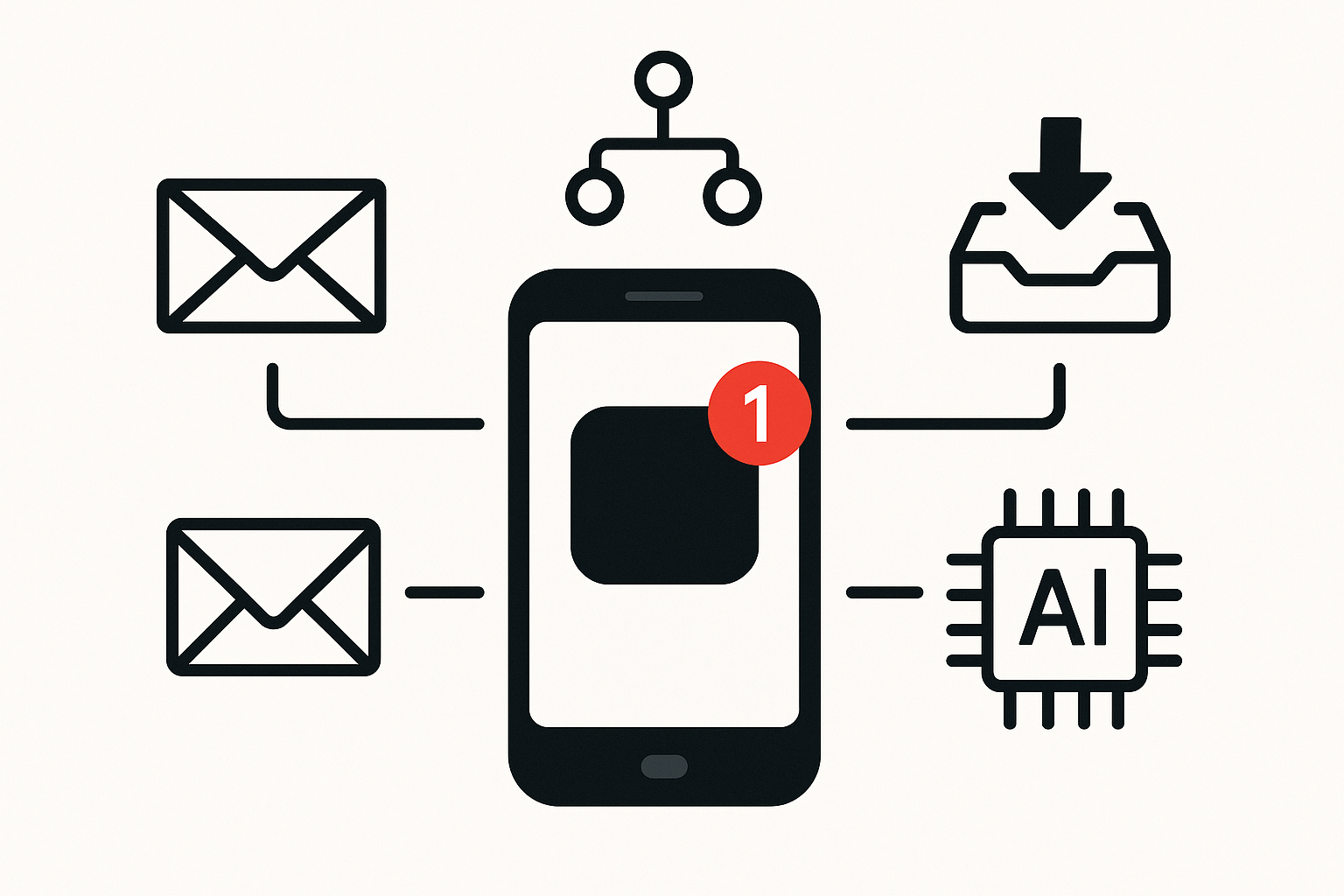
A missed phone notification can lead to a cascade of problems, whether it’s forgetting an important meeting or failing to respond to a client’s urgent request. Many people find themselves overwhelmed by the sheer volume of notifications they receive daily, often leading to critical alerts getting lost in the noise. This situation is particularly frustrating when you’re trying to juggle work commitments with personal responsibilities, like managing school runs or keeping track of appointments. The good news is that by automating your phone notifications through Microsoft 365, you can enhance your personal alerts and ensure that the most important messages never slip through the cracks.
Automation has become an essential tool for managing daily tasks, especially for those who are not tech-savvy. Microsoft 365 offers various features that allow you to streamline your notifications, ensuring that only the most relevant alerts reach your phone. This means you can focus on what truly matters without the constant distraction of less important notifications. By setting up personalised alerts, you can create a tailored experience that prioritises your needs, whether that’s reminders for client calls or updates on project deadlines.
Understanding Phone Notifications in Microsoft 365
Phone notifications in Microsoft 365 serve as reminders and alerts that keep you informed about important events, messages, and updates. With the integration of various apps within Microsoft 365, you can centralise your notifications, making it easier to manage your time and tasks. For instance, if you use Outlook for email and calendar management, you can set up notifications that alert you to new emails, upcoming meetings, or even tasks that need your attention. This integration ensures that all your important information is at your fingertips, reducing the chances of missing critical updates.
To get started with automating your phone notifications, it’s essential to understand the different types of alerts available within Microsoft 365. You can receive notifications for emails, calendar events, tasks, and even reminders set within applications like Microsoft To Do. By customising these alerts, you can filter out the noise and focus on what’s truly important. If you’re self-employed and booking client calls, for instance, setting up specific notifications for those appointments can help you stay organised and prepared. If you’d like more practical workflows, check out our other guides.
Setting Up Personal Alerts
Creating personal alerts in Microsoft 365 is a straightforward process that can significantly enhance your notification experience. Begin by accessing your Outlook account, where you can manage your email and calendar settings. Navigate to the settings menu, where you’ll find options to customise your notifications. Here, you can choose how you want to be alerted for different types of events, whether through pop-ups, sound alerts, or even vibrations on your phone.
For example, if you want to ensure you never miss a client meeting, you can set up a specific alert for calendar events. This can be done by selecting the calendar settings and enabling notifications for upcoming meetings. You can choose to receive these alerts a few minutes before the meeting starts, giving you ample time to prepare. By tailoring your notifications in this way, you can avoid the stress of last-minute scrambles and ensure you’re always ready for your commitments.
Additionally, consider using Microsoft To Do to manage your tasks and reminders. You can set specific deadlines for tasks and receive notifications when they are due. This is particularly useful for keeping track of important projects or deadlines that could otherwise slip your mind. By integrating your task management with your calendar notifications, you create a comprehensive system that keeps you informed and organised.
Automating Notifications with Power Automate
For those looking to take their notification management a step further, Microsoft Power Automate offers powerful automation capabilities that can enhance your personal alerts. This tool allows you to create workflows that automate various tasks, including notifications. For instance, you can set up a flow that sends you a notification whenever you receive an email from a specific client or when a particular event is added to your calendar.
To create a workflow in Power Automate, start by choosing a trigger, such as receiving an email or a new calendar event. You can then define the action you want to take, like sending a push notification to your phone or creating a task in Microsoft To Do. This level of automation ensures that you’re always in the loop, even when you’re busy with other tasks. If you’re managing multiple projects or clients, this can be a game-changer, as it allows you to focus on your work without constantly checking for updates.
If you don’t use Power Automate, similar concepts can be applied using other tools like Make or Zapier, which also offer automation capabilities that can help streamline your notifications.
Customising Notification Settings for Maximum Efficiency
Customising your notification settings is crucial for maximising the efficiency of your alerts. Microsoft 365 allows you to adjust the frequency and type of notifications you receive, ensuring that you’re not overwhelmed by unnecessary alerts. For instance, you might want to limit email notifications to only those marked as important or from specific contacts. This helps reduce distractions and allows you to concentrate on your most pressing tasks.
In addition to filtering notifications, consider the timing of your alerts. You can set specific hours during which you receive notifications, helping to maintain a work-life balance. For example, if you prefer to avoid work notifications during family time, you can schedule alerts to only come through during your working hours. This approach not only keeps you organised but also helps you maintain boundaries between work and personal life.
Another useful feature within Microsoft 365 is the ability to group notifications. This means that instead of receiving individual alerts for each email or calendar event, you can receive a summary of notifications at set intervals. This can be particularly beneficial if you find yourself inundated with alerts throughout the day. By grouping notifications, you can review them at your convenience, reducing interruptions and allowing for more focused work sessions.
The Importance of Regularly Reviewing Your Notification Preferences
As your work and personal life evolve, so too should your notification preferences. Regularly reviewing and adjusting your settings ensures that your alerts remain relevant and useful. Take the time to assess which notifications you find most helpful and which ones may no longer serve a purpose. This ongoing evaluation helps prevent notification fatigue, where the sheer volume of alerts leads to important messages being overlooked.
Consider setting aside a few minutes each month to review your notification settings. During this time, you can adjust your preferences based on any changes in your work commitments or personal life. If you’ve taken on new clients or projects, for instance, you may want to add specific alerts for those. Alternatively, if certain notifications are no longer necessary, it’s wise to disable them to streamline your experience.
By keeping your notification preferences up to date, you can ensure that you’re always receiving the most relevant information without the clutter of unnecessary alerts. This proactive approach not only enhances your productivity but also contributes to a more organised and efficient workflow.
Conclusion
Automating phone notifications through Microsoft 365 is an effective way to enhance your personal alerts and streamline your daily routine. By setting up tailored notifications, utilising Power Automate for automation, and regularly reviewing your preferences, you can ensure that you stay informed without becoming overwhelmed. This approach not only helps you manage your time more effectively but also reduces the risk of missing important messages or events.
If you’re looking to further optimise your workflow, consider exploring other automation opportunities, such as scheduling appointments with ease. Simplifying Your Appointment Management: Automating Scheduling with Microsoft 365 can provide additional insights into how to enhance your productivity even further.