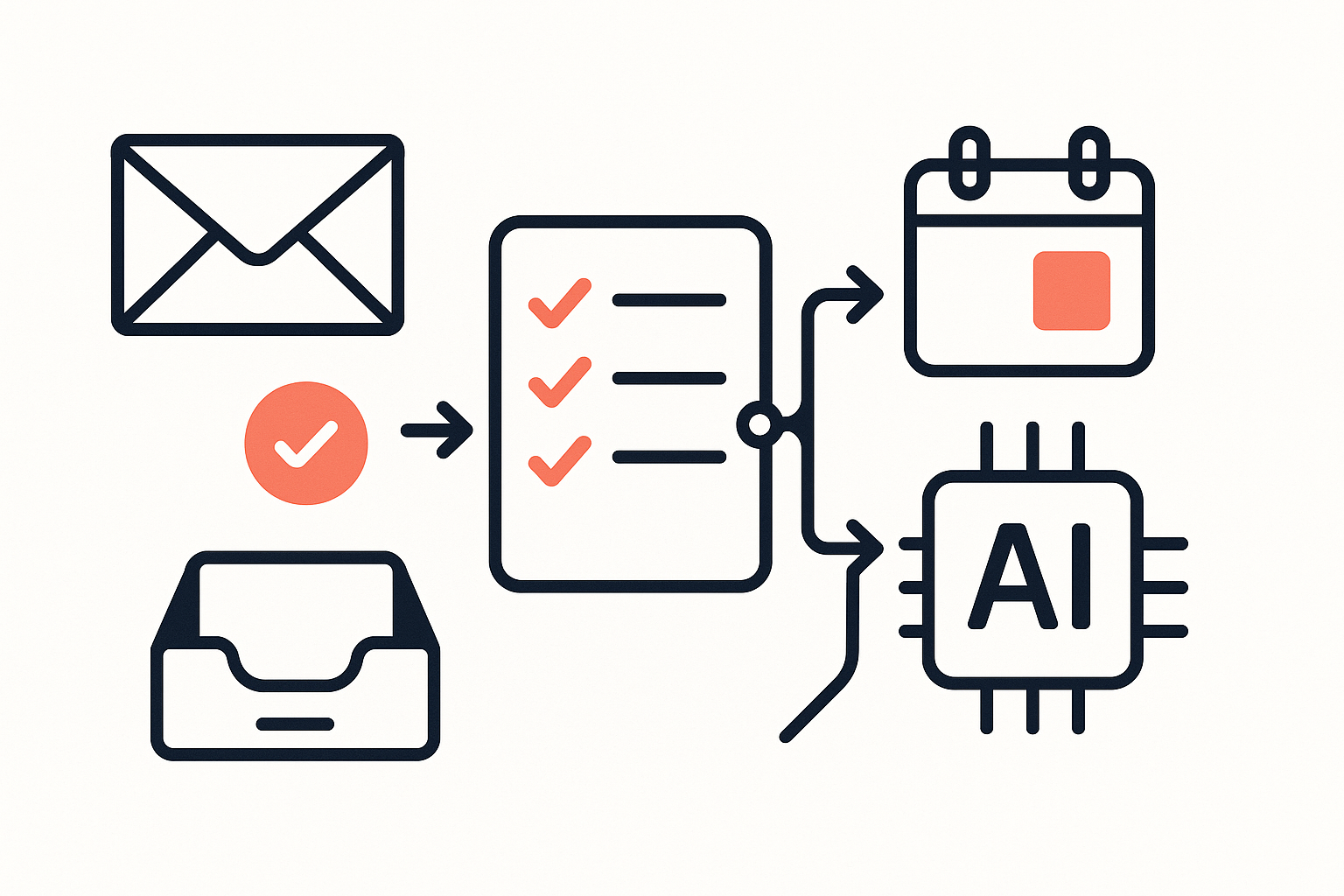
A missed appointment can throw off your entire day, leaving you scrambling to catch up with your plans. Whether it’s forgetting to pick up dry cleaning or missing a client call, these small oversights can lead to larger issues. If you’re managing a busy schedule, especially if you’re self-employed and juggling client meetings, keeping track of your tasks and reminders can quickly become overwhelming. Fortunately, Todoist automation offers a straightforward solution to streamline your daily routine, ensuring that you stay on top of your commitments without the constant worry of forgetting important tasks.
Todoist is a powerful task management tool that allows you to create, organise, and automate your reminders and events. By integrating automation into your daily workflow, you can ensure that your tasks are set up efficiently, allowing you to focus on what truly matters. The beauty of Todoist is that it adapts to your unique needs, making it easier to manage your time and commitments effectively.
Setting Up Your Todoist Automation
To begin with, setting up Todoist automation is about understanding how to create tasks that align with your daily routine. Start by identifying the recurring tasks that you manage each week. For instance, if you have regular meetings or reminders to send invoices, you can automate these tasks so they appear on your Todoist list without needing to input them manually each time. This not only saves you from the hassle of repetitive entries but also reduces the risk of forgetting to add them altogether.
Once you have identified these tasks, you can create recurring reminders in Todoist. This feature allows you to set tasks to repeat at specific intervals, whether daily, weekly, or monthly. For example, if you need to remind yourself to check in with a client every Friday, you can set a task titled “Client Check-In” to repeat every week. This way, you don’t have to worry about remembering to add it to your list each week, as Todoist will automatically populate it for you.
Integrating with Your Calendar
Integrating Todoist with your calendar can further enhance your productivity. By linking Todoist with Google Calendar or Outlook, you can synchronise your tasks with your events, ensuring that you have a comprehensive view of your commitments. This integration allows you to see your tasks alongside your scheduled meetings, making it easier to manage your time effectively. If you have an event scheduled, you can create a task in Todoist that reminds you to prepare for that event, ensuring that you’re always ready.
To set up this integration, you simply need to connect your Todoist account with your calendar of choice. Once linked, any tasks you create in Todoist will automatically appear in your calendar, and vice versa. This means that if you schedule a meeting in your calendar, you can create a corresponding task in Todoist to remind you to prepare for it, thus avoiding any last-minute scrambles.
Using Labels and Filters for Better Organisation
Another powerful feature of Todoist is the ability to use labels and filters to organise your tasks more effectively. Labels allow you to categorise tasks based on context, such as “urgent”, “home”, or “work”, while filters enable you to view specific sets of tasks based on criteria you define. For instance, if you’re managing multiple projects, you can label tasks according to each project, making it easier to focus on what needs to be done at any given time.
By using labels, you can quickly identify which tasks require immediate attention and which can wait. This is particularly useful if you have a busy day ahead and need to prioritise your tasks. You can create a filter to show only tasks labelled as “urgent”, allowing you to focus on those first. This way, you can ensure that you’re always working on the most important tasks, reducing the likelihood of overlooking critical deadlines. If you want more guides like this, check out our other guides.
Automating Task Completion and Follow-Ups
Todoist also allows for automation in task completion and follow-ups. Once you complete a task, you can set up Todoist to automatically create a follow-up task. For example, if you finish a project, you can have a follow-up task created that reminds you to send a thank-you email or request feedback. This not only streamlines your workflow but also ensures that you maintain good communication with clients and colleagues.
To set this up, you can use Todoist’s automation features to create a rule that triggers a follow-up task upon completion of another task. This ensures that you don’t forget to follow up on important matters, which can often slip through the cracks in a busy schedule. By automating these follow-ups, you can maintain a professional image and ensure that all necessary communications are handled promptly.
Streamlining Your Daily Routine with Todoist Automation
Integrating Todoist automation into your daily routine can significantly enhance your productivity. By setting up recurring tasks, integrating with your calendar, using labels and filters, and automating follow-ups, you create a seamless workflow that allows you to focus on your priorities. These strategies not only help you stay organised but also prevent the chaos that can arise from missed deadlines and forgotten tasks.
If you’re self-employed and managing client calls and meetings, these automation strategies can be particularly beneficial. You can ensure that you’re always prepared for your appointments and that you follow up on important communications without the stress of remembering every detail.
Exploring Alternatives and Additional Tools
While Todoist is a fantastic tool for task management and automation, there are other options available that offer similar functionalities. If you don’t use Todoist, the same ideas can be applied using tools like Asana or Microsoft To Do, which also allow for task automation and integration with calendars. The principles of setting up recurring tasks, integrating with your calendar, and using labels remain consistent across these platforms, so you can choose the one that best fits your workflow.
Final Thoughts
Incorporating Todoist automation into your daily routine can transform the way you manage your tasks and reminders. By automating repetitive tasks, integrating your calendar, and using labels and filters, you can create a more organised and efficient workflow. This not only helps you stay on top of your commitments but also reduces the stress associated with managing a busy schedule. As you begin to implement these strategies, you’ll likely find that your productivity increases, allowing you to focus on what truly matters in your work and personal life. For those interested in further automating their processes, consider exploring additional tools and strategies that can complement your use of Todoist.
For more insights on automating your workflow, check out Streamlining Client Follow-Up: Automating Invoicing and Quotes with Google Drive.